
Step-by-Step Guide to Bulk Schedule Drafts
Step-by-Step Guide to Bulk Schedule Drafts
We’ve added a new Bulk Schedule button on the calendar page that allows you to automatically schedule all your draft posts. Follow these steps to bulk schedule your drafts:
📝 Step 1: Open the Calendar Page
- Log in to your account.
- Navigate to the Calendar section from the dashboard.
🚀 Step 2: Locate the Bulk Schedule Button
- On the calendar page, look for the new Bulk Schedule button on the upper right.
-
This button will allow you to schedule all your draft posts automatically.
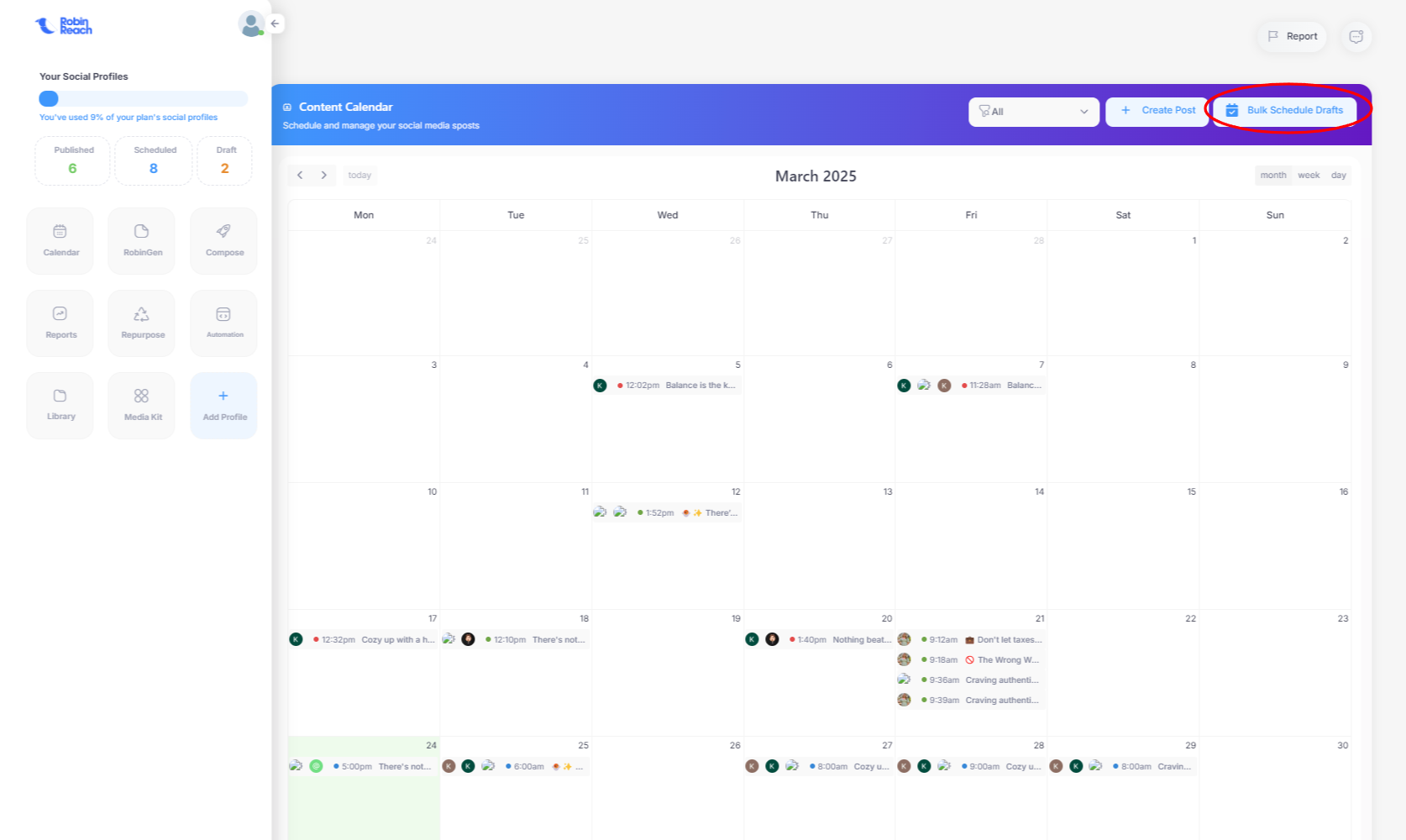
📅 Step 3: Click on Bulk Schedule
- Click the Bulk Schedule button.
- Once clicked, all your draft posts will be scheduled automatically.
⏰ Step 4: Automatic Scheduling Process
- The system will schedule your draft posts over the next N days, where N is the total number of drafts.
- Posting times will be randomly distributed between 9 AM and 5 PM according to your account's timezone.
✅ Step 5: Review Scheduled Posts
- After scheduling, you can review the posts on the calendar to make any adjustments if needed.
- If auto-publish is enabled, the posts will be published automatically based on the schedule.
You're all set! 🎉 Your draft posts are now ready to be published effortlessly.