
How to Set Up Comment-to-DM Automation
How to Set Up Comment-to-DM Automation
Automatically send someone a direct message when they comment on your social media post with a chosen keyword.
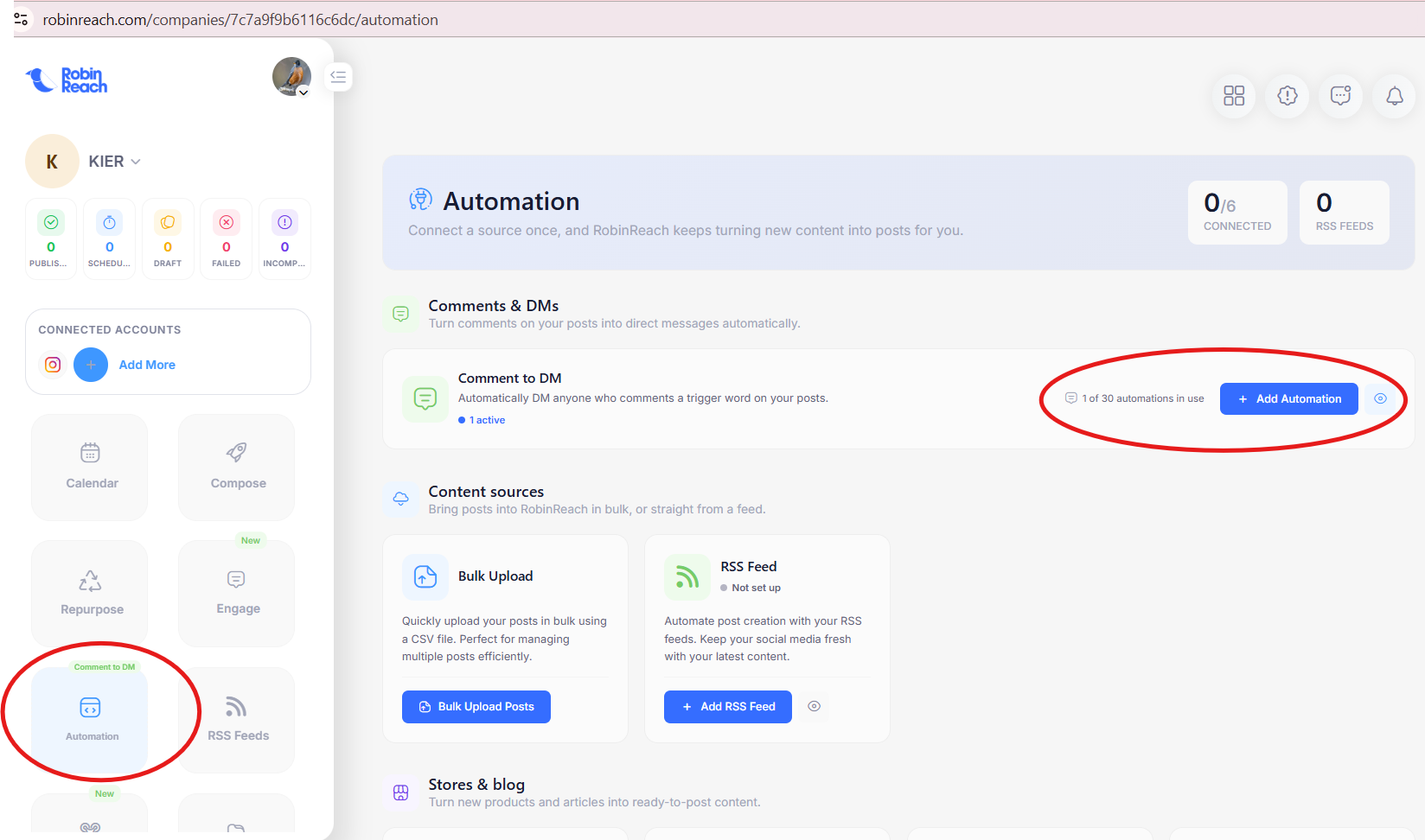
Open Automation and start a new automation
Log in to RobinReach and open the correct brand or workspace. Go to Automation, then choose the option to create a new automation. The New automation setup window will open.
Name the automation and select the social account
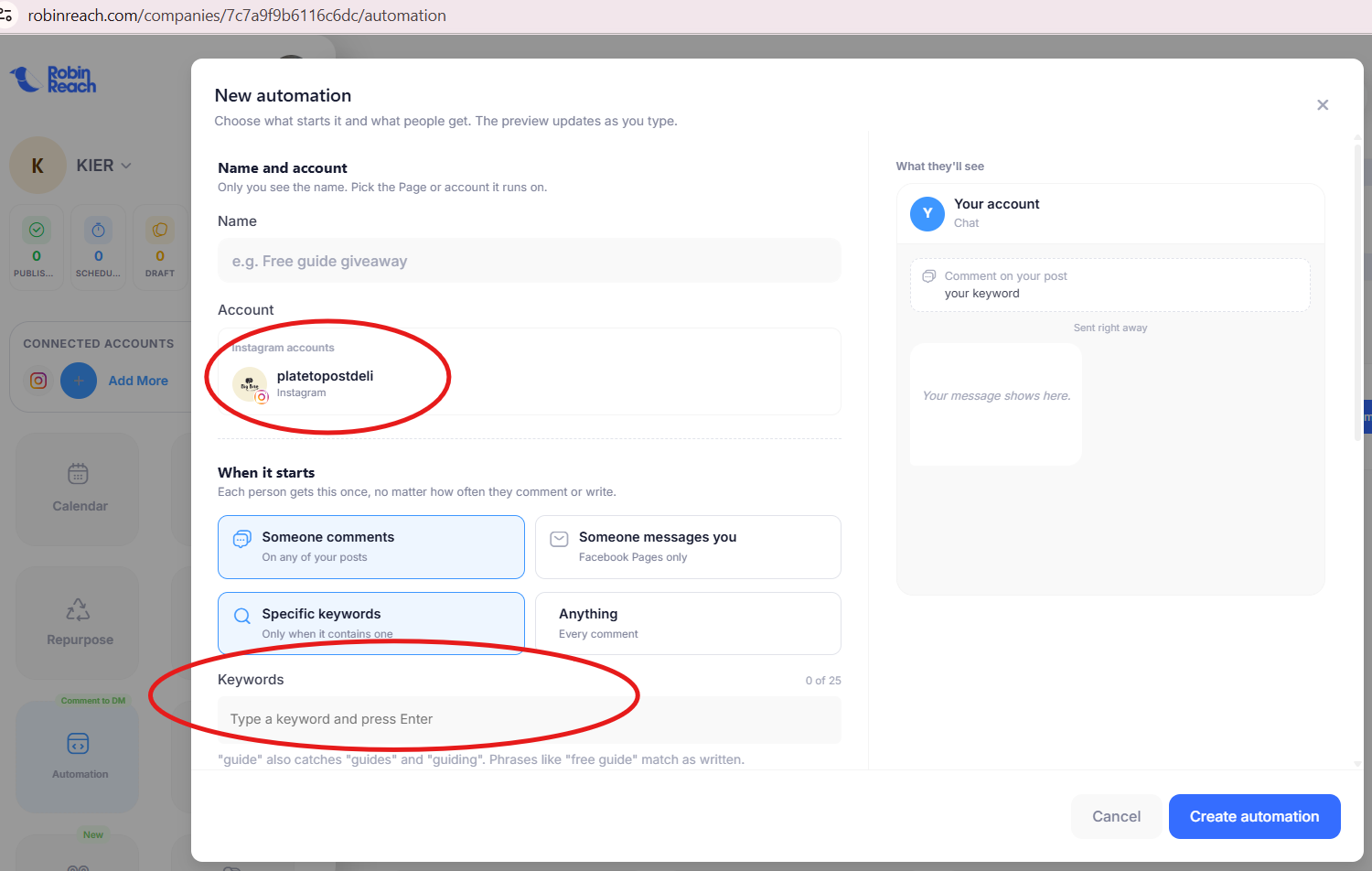
Under Name and account:
- Enter an internal name so you can identify the automation later. This name is only visible to you.
- Select the Facebook Page or Instagram account where the automation should run.
Example name: Free Recipe
Choose what triggers the automation
In When it starts, select Someone comments to trigger the automation when a person comments on your posts.
Next, choose how comments should be matched:
- Specific keywords: Send the DM only when the comment contains one of the keywords you specify.
Add the keyword
In the Keywords field, type the word people should comment and press Enter to add it.
Example keyword: YUM
Keep the keyword simple and make sure it matches the call to action in your post. RobinReach notes that a single-word keyword can also match close variations—for example, "guide" may match "guides" or "guiding." A phrase such as "free guide" matches as written.
Write the direct message
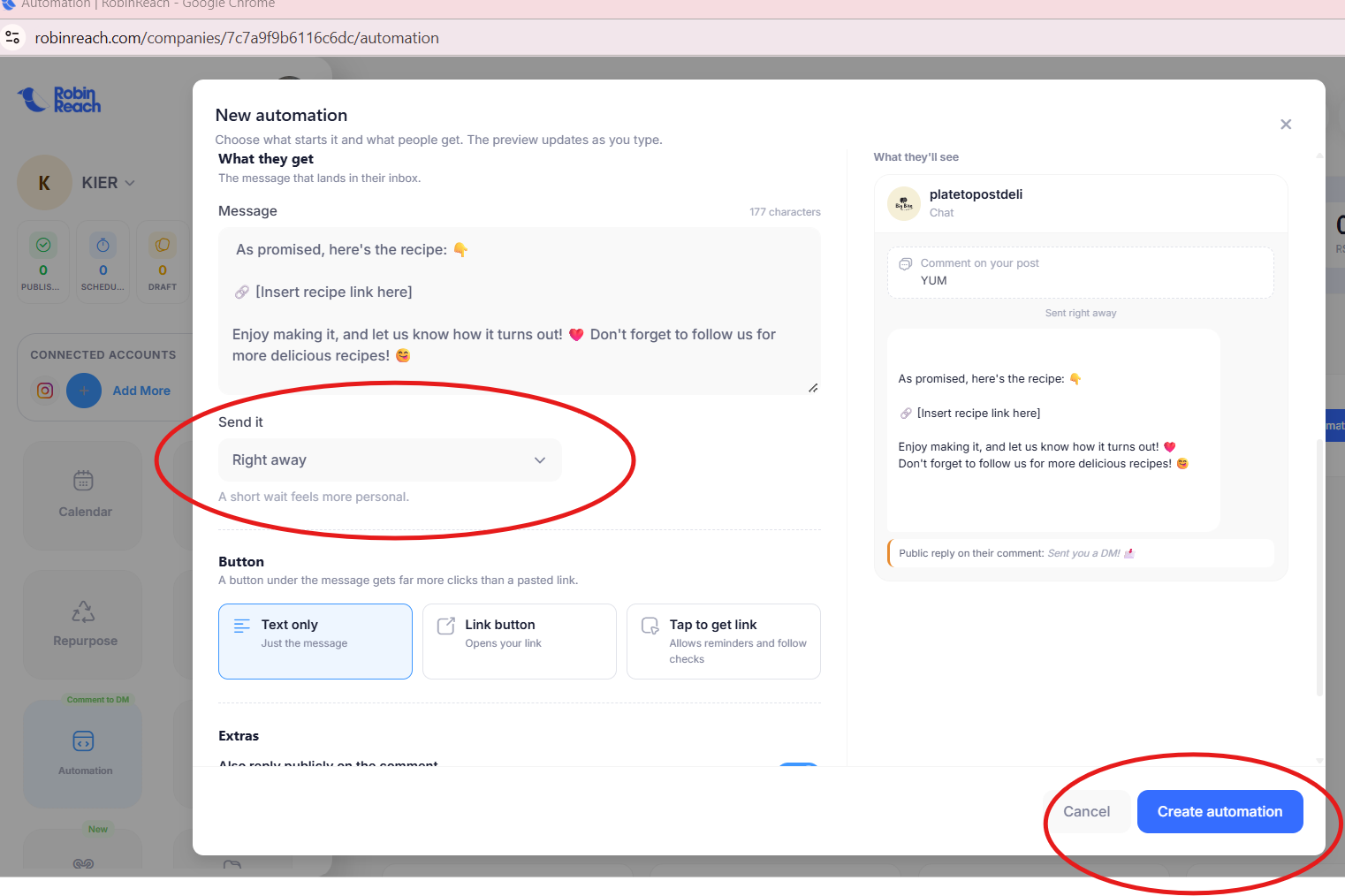
Under What they get, enter the message people will receive in their inbox.
Choose when to send the message
Under Send it, choose the timing available in the dropdown. Choose "Right away" selected, which sends the message immediately after the trigger.
Choose the message button style
Under Button, choose the option that fits your message:
- Text only: Sends the message without a separate button.
- Link button: Adds a button that opens your link.
- Tap to get link: Uses a tap action to deliver the link and supports reminder/follow-up checks, as described in the interface.
If your recipe link is already included in the message and you don't need a separate button, choose Text only. If you want a clear clickable call to action, choose Link button.
Optionally enable a public reply
Under Extras, turn on Also reply publicly on the comment if you want RobinReach to leave a public response as well as send the DM.
Review and create the automation
Review the name, selected account, trigger, keyword, DM text, sending timing, button style, and optional public reply. When everything is correct, click Create automation.
Test the automation
- Publish or choose an appropriate post with a clear instruction, such as "Comment YUM to receive the recipe."
- From a different social account, comment YUM on the post.
- Check whether the account receives the expected direct message and whether the optional public reply appears.
Helpful tips
- Use a clear keyword that is easy for people to remember.
- Tell people exactly what to comment in your post caption.
- Double-check the selected social account before creating the automation.
- Keep your DM concise and verify that the resource link works.
- Before sharing screenshots in a help article, hide account identifiers, email addresses, private messages, and other personal information.