
Client's Connect Link
How to Connect a Client's Social Accounts With a Connect Link
Getting a client's social accounts normally means one of two awkward options: asking them for their passwords, or walking them through your dashboard on a screen share.
A Connect Link removes both. You generate one link, send it to your client, and they connect their own accounts themselves. They do not create a RobinReach account, they do not log in, and they never see your dashboard. The accounts land in the brand you created the link for, ready to schedule.
Available on: Thrive and Scale plans. Who can create one: brand admins and account admins.
What your client can and cannot do with the link
A Connect Link is deliberately narrow. Anyone holding it can:
- Connect social accounts to the one brand the link belongs to.
They cannot:
- See your calendar, posts, reports, media library, or settings.
- See your other brands or your other clients.
- See or edit the accounts that are already connected, or disconnect anything.
- Publish, schedule, or delete a post.
Step 1: Open the Connect Links page
In the sidebar, under Connected Accounts, click Add More (or Connect to get started if the brand has no accounts yet). On the Connect Your Accounts page, click Connect Links.
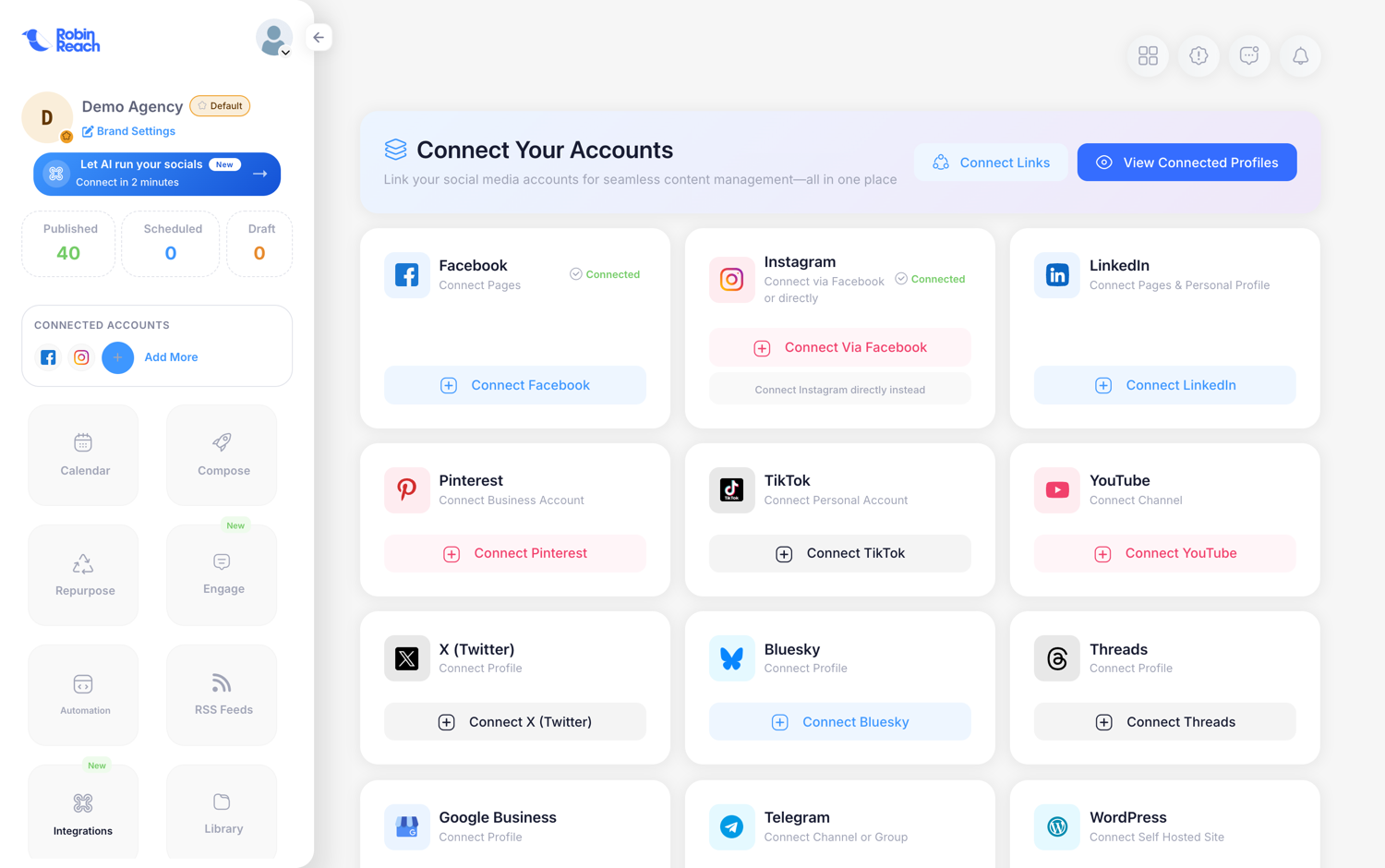
Check the brand first. The accounts your client connects go into whichever brand is active when you create the link. If you manage several brands, switch to the right one before you continue.
You will also find a Connect Links button on the Connected Profiles page.
Step 2: Create the link
Click Create Connect Link and fill in the form.
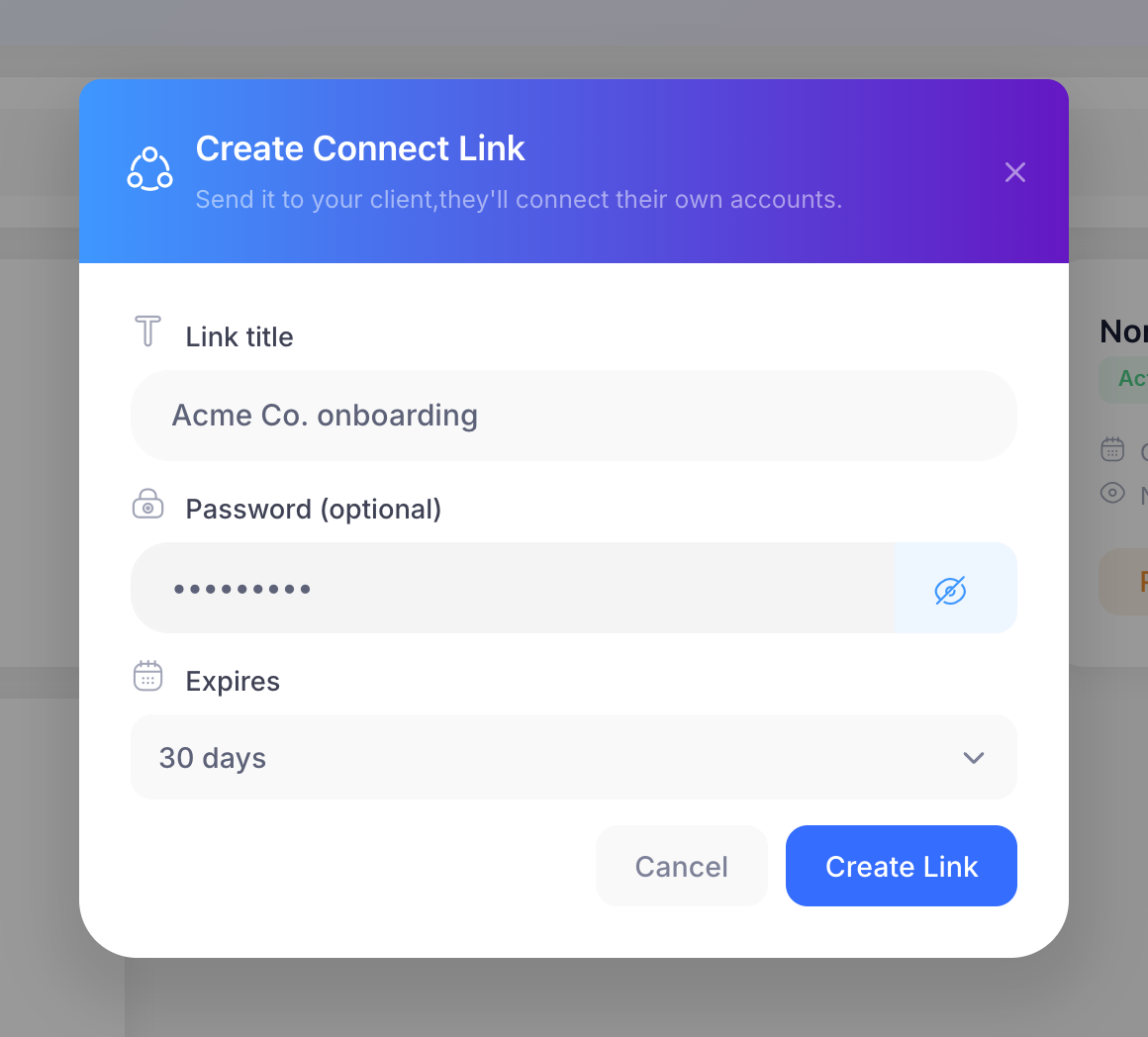
| Field | What to enter |
|---|---|
| Link title | A name for your own reference, for example "Acme Co. onboarding". Your client sees this title on the password screen, so keep it recognisable to them too. |
| Password (optional) | An extra gate. Leave it blank and anyone with the URL can open it. Set one and your client has to type it before they can connect anything. Use the eye icon to check what you typed. |
| Expires | Never, 7 days, 30 days, or 90 days. After the date passes, the link stops working. Onboarding windows are usually short, so 7 or 30 days is a sensible default. |
Then click Create Link.
Step 3: Copy the link before you close the window
The link appears once, in a confirmation window. Click the copy button and paste it somewhere safe.
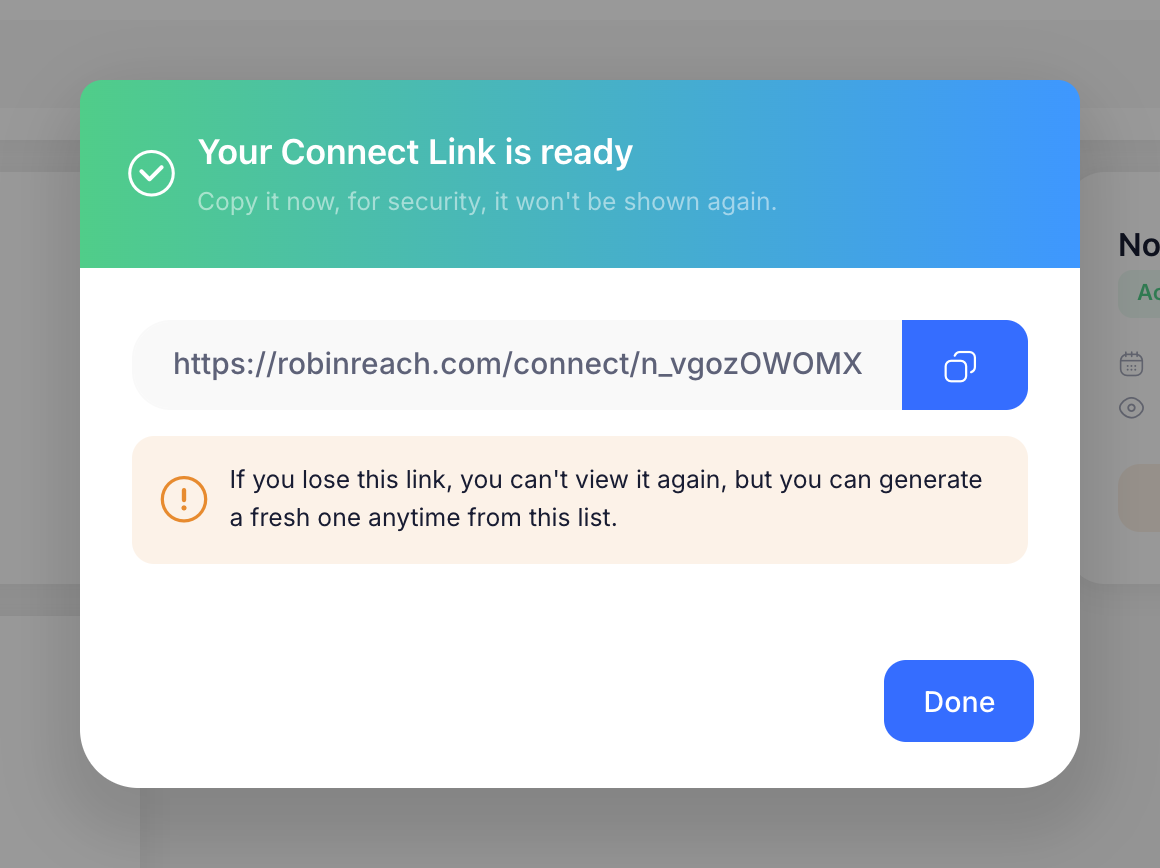
RobinReach stores the link in a scrambled form it cannot reverse, which is why the page cannot show it to you a second time. If you lose it, do not start over: open the Connect Links page and click Regenerate on that link to issue a fresh URL.
Step 4: Send it to your client
Paste the link into an email or a message. Two things worth adding:
- Send the password separately if you set one, ideally through a different channel than the link itself.
- Say which accounts you need, for example "the Facebook Page and the Instagram business account". Your client also needs to be an admin of the pages they are connecting, otherwise the platform will not offer those pages during authorisation.
Step 5: What your client sees
The password screen
Only if you set a password. The link title is shown so your client knows they are in the right place.
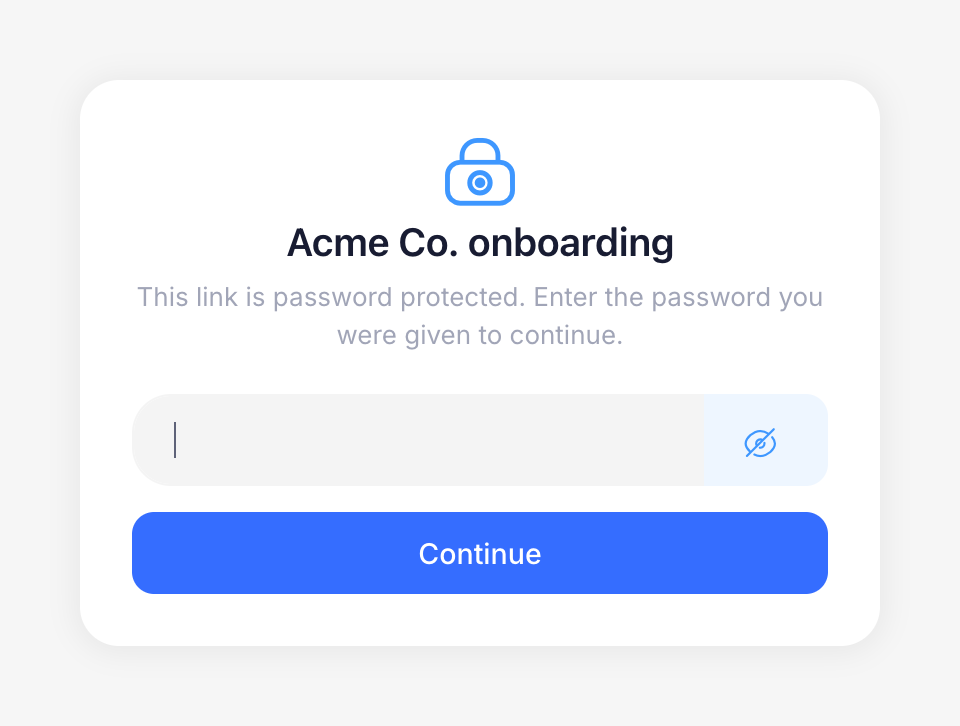
After five wrong attempts the link locks itself for 15 minutes.
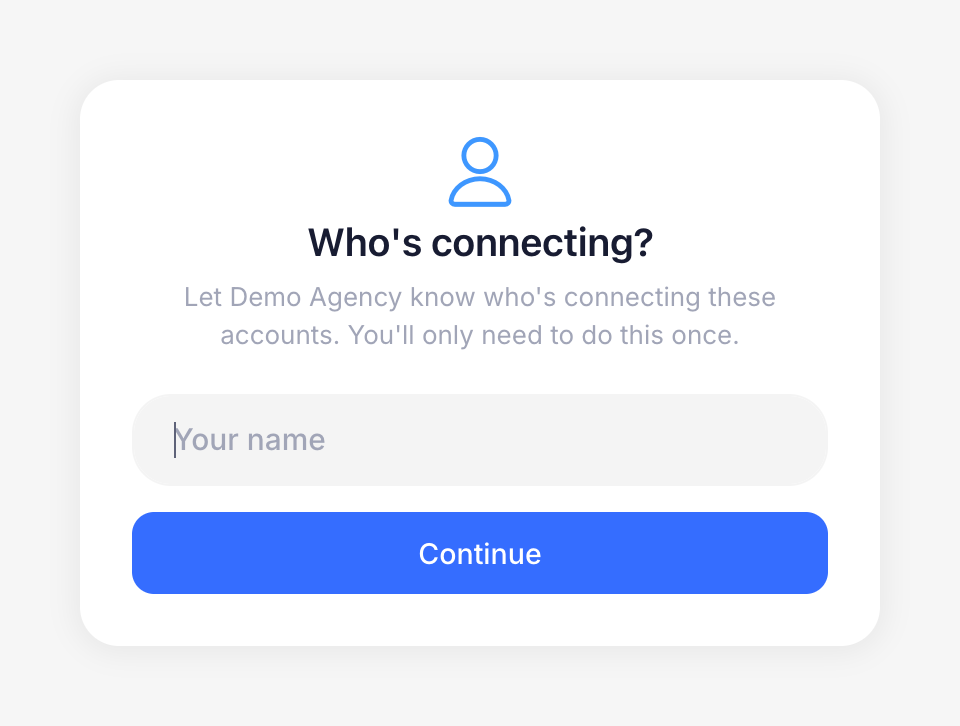
"Who's connecting?"
Your client types their name once. It is not an account and there is no password to choose: the name is only so you can see who connected the accounts.
The connect screen
This is the same connect screen you use, with everything else stripped away.
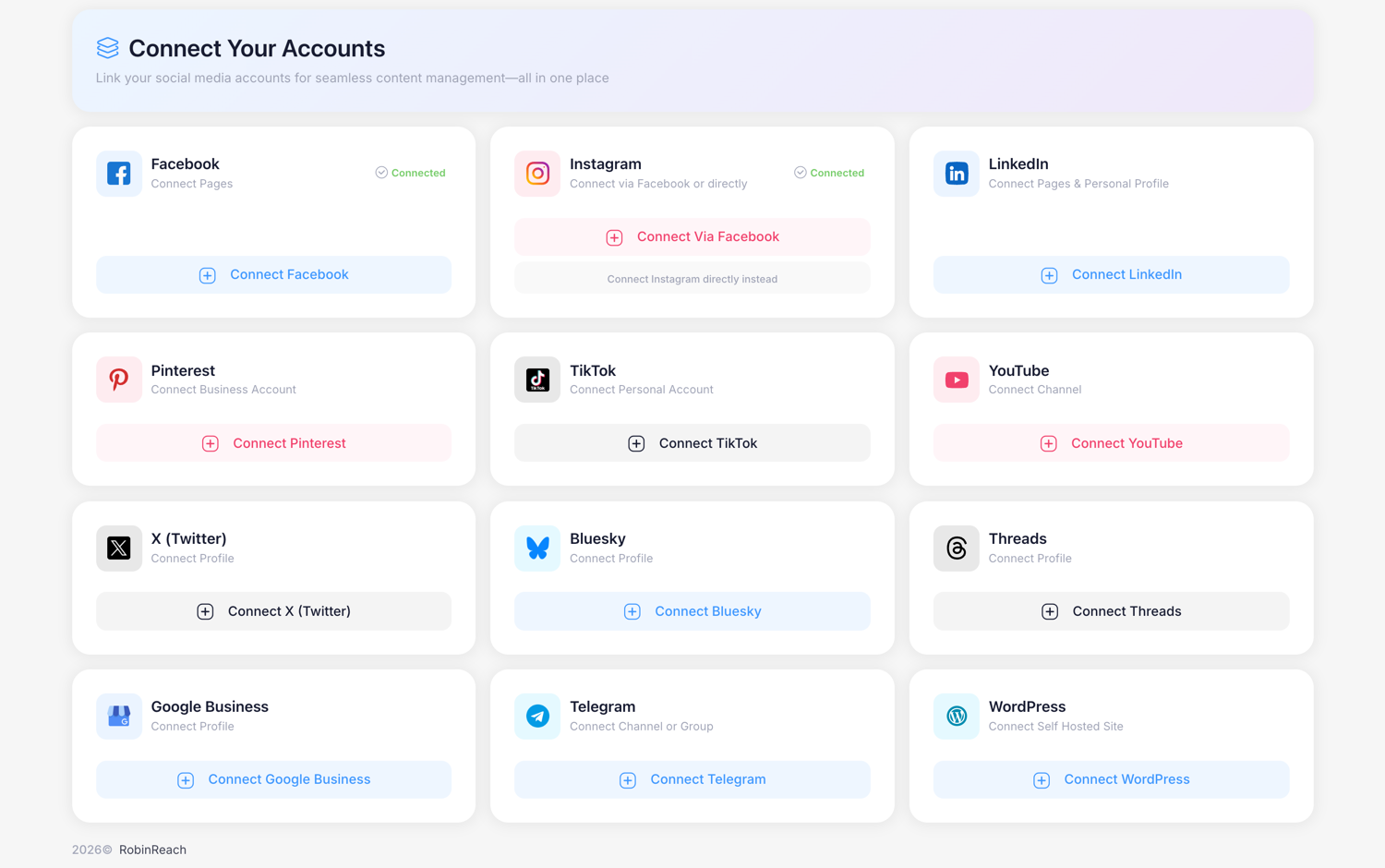
Your client clicks Connect on a platform, signs in on that platform's own website, and picks the page or account to grant access to. RobinReach never sees their password. They are then returned to this screen so they can connect the next platform, and they can connect as many as you need in one sitting.
Available platforms: Facebook, Instagram, LinkedIn, Pinterest, TikTok, YouTube, X (Twitter), Bluesky, Threads, Google Business, Telegram, and WordPress.
When they are done, they can simply close the tab. There is nothing to save.
Step 6: Track and manage your links
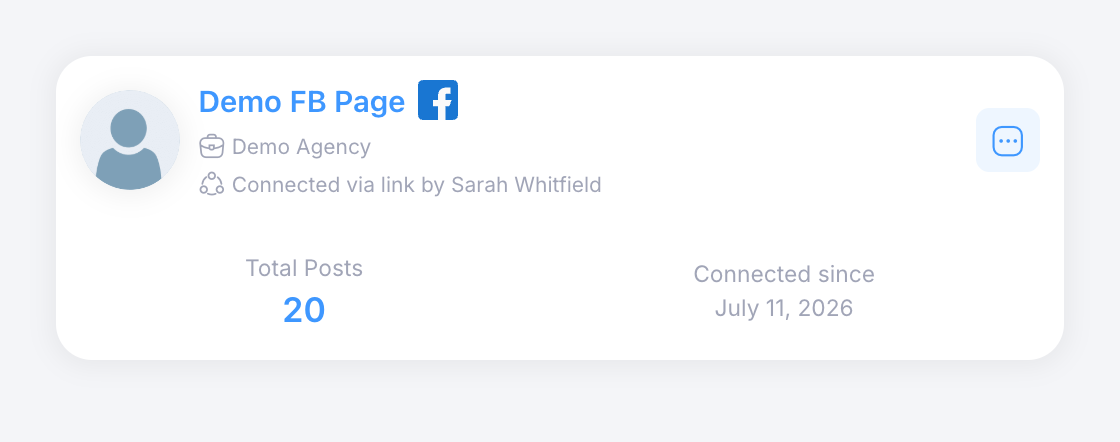
Connected accounts appear under Connected Profiles straight away, tagged with the name your client gave, so you can tell link connections apart from ones you added yourself.
From that point on the accounts behave like any other: schedule, publish, and report on them as normal.
The Connect Links page lists every link you have created, newest first, with a search box for finding one by title.
Each card shows who created the link and when, who used it, and how often it has been opened.
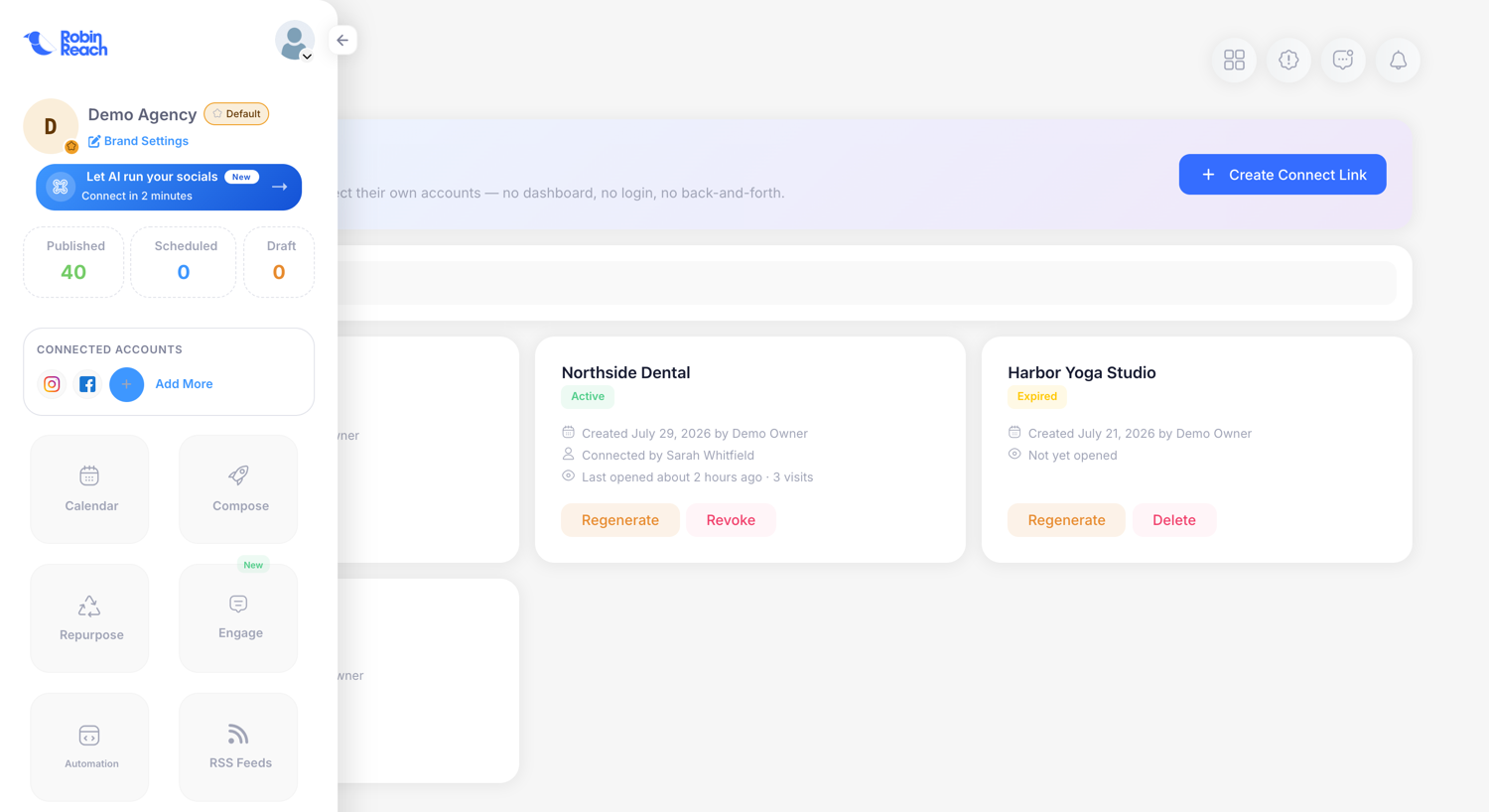
Status badges
| Badge | Meaning |
|---|---|
| Active | The link works. |
| Password | A password is required to open it. |
| Expired | The expiry date has passed. The link no longer opens. |
| Revoked | You switched it off. The link no longer opens. |
Buttons
| Button | What it does | When to use it |
|---|---|---|
| Regenerate | Issues a brand new URL and kills the old one on the spot. The password stays the same, but the expiry resets to Never, and the visit history and connector name are cleared. | When you have lost the link, or it has reached the wrong person. |
| Revoke | Switches the link off immediately. | As soon as onboarding is finished. |
| Delete | Removes the link from the list entirely. Only offered once a link is revoked or expired. | When you no longer need the record of it. |
Note: Revoking, regenerating, or deleting a link never disconnects accounts that were already connected through it. Those accounts stay exactly where they are. The only thing you lose by deleting a link is the "Connected via link" label on the profiles that came from it.
If your client says the link does not work
This page means the link has expired, has been revoked, or the URL was mangled somewhere along the way (a truncated link in an email signature is a common cause). Open the Connect Links page, click Regenerate on that link, and send the new URL.
If your client sees "Too many attempts" instead, too many wrong passwords were entered. Wait 15 minutes and try again, and re-send the password so they are typing the right one.
Frequently asked questions
Does my client need a RobinReach account? No. No account, no password to create, and no seat used on your plan.
Can one link be used for several accounts? Yes. One link covers as many platforms as your client wants to connect, and it keeps working until it expires or you revoke it.
Can I reuse one link for several clients? You can, but don't. Give each client their own link so you can revoke one without affecting anyone else, and so the "Connected by" name stays meaningful.
Can I change a link's password later? No. Create a new link with the password you want, and revoke the old one.
My client opened the link again a week later and it asked for the password again. That is expected. The password is remembered only for that browser session. They will not be asked their name a second time.
Is the link safe to email? It is a long, random, unguessable URL, and RobinReach only stores a scrambled copy of it, so nobody (including us) can look it up later. Still, treat it like a key: set a password for sensitive clients, set an expiry, and revoke it when onboarding is done. Repeated password guessing is blocked automatically, both per link and per visitor.
How many links can I create? As many as you need.
Who can create Connect Links? Brand admins and account admins on a Thrive or Scale plan. On other plans the button prompts an upgrade instead.