
WordPress-Connect
Overview
Connect your WordPress site to RobinReach to publish and schedule blog posts right from your RobinReach dashboard, alongside your social channels. The connection uses the official WordPress REST API together with an application password, a special password that WordPress generates just for RobinReach. You never share your real WordPress login password, and you can revoke access at any time.
What you will need
- A self-hosted WordPress site running WordPress 5.6 or newer
- Your site served over HTTPS (an SSL certificate)
- A WordPress user that is allowed to publish posts (Author, Editor, or Administrator)
- About two minutes
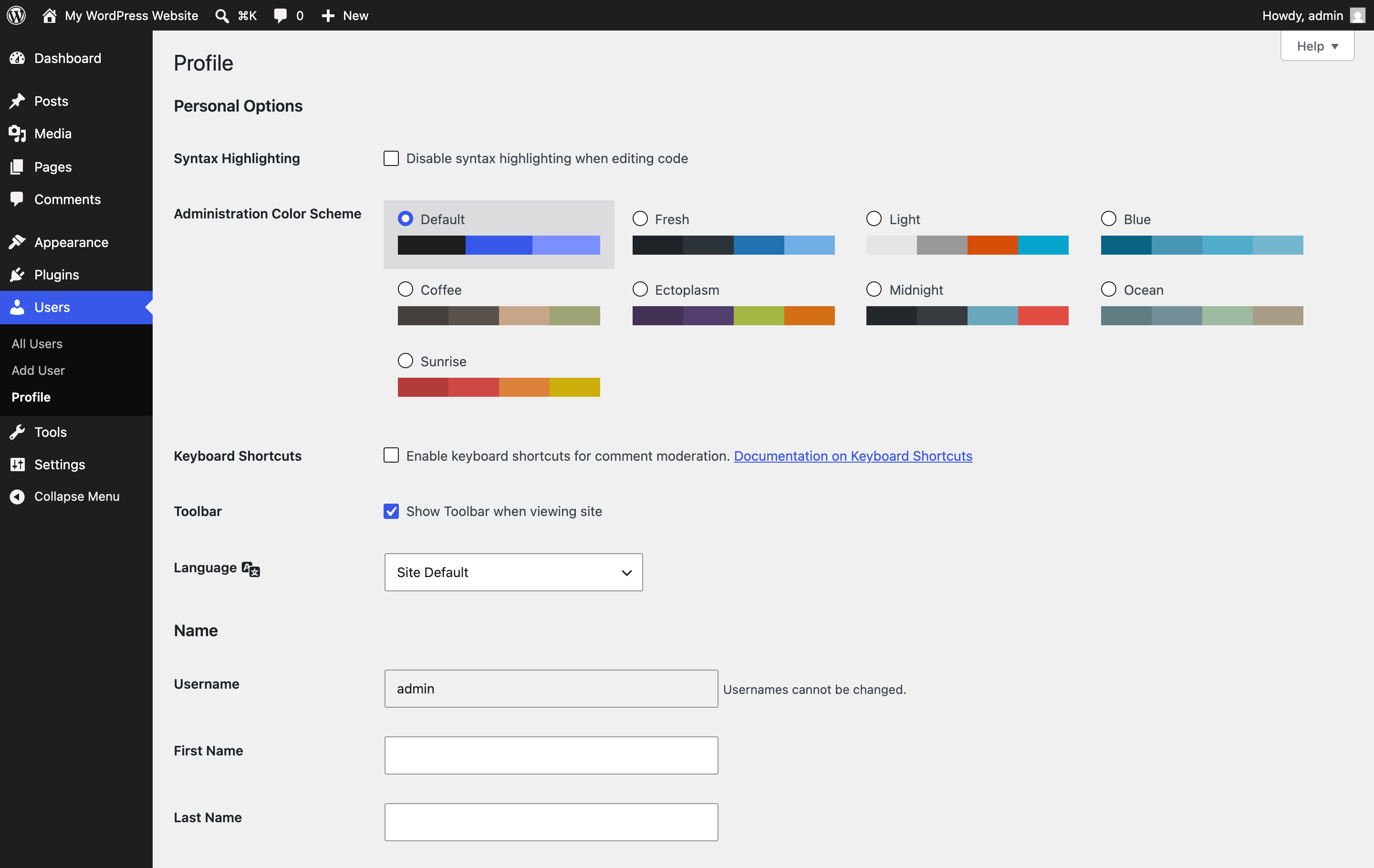
Step 1: Open your WordPress profile
Log in to your WordPress admin (usually yoursite.com/wp-admin ) and go to Users → Profile in the left menu.
Step 2: Generate an application password
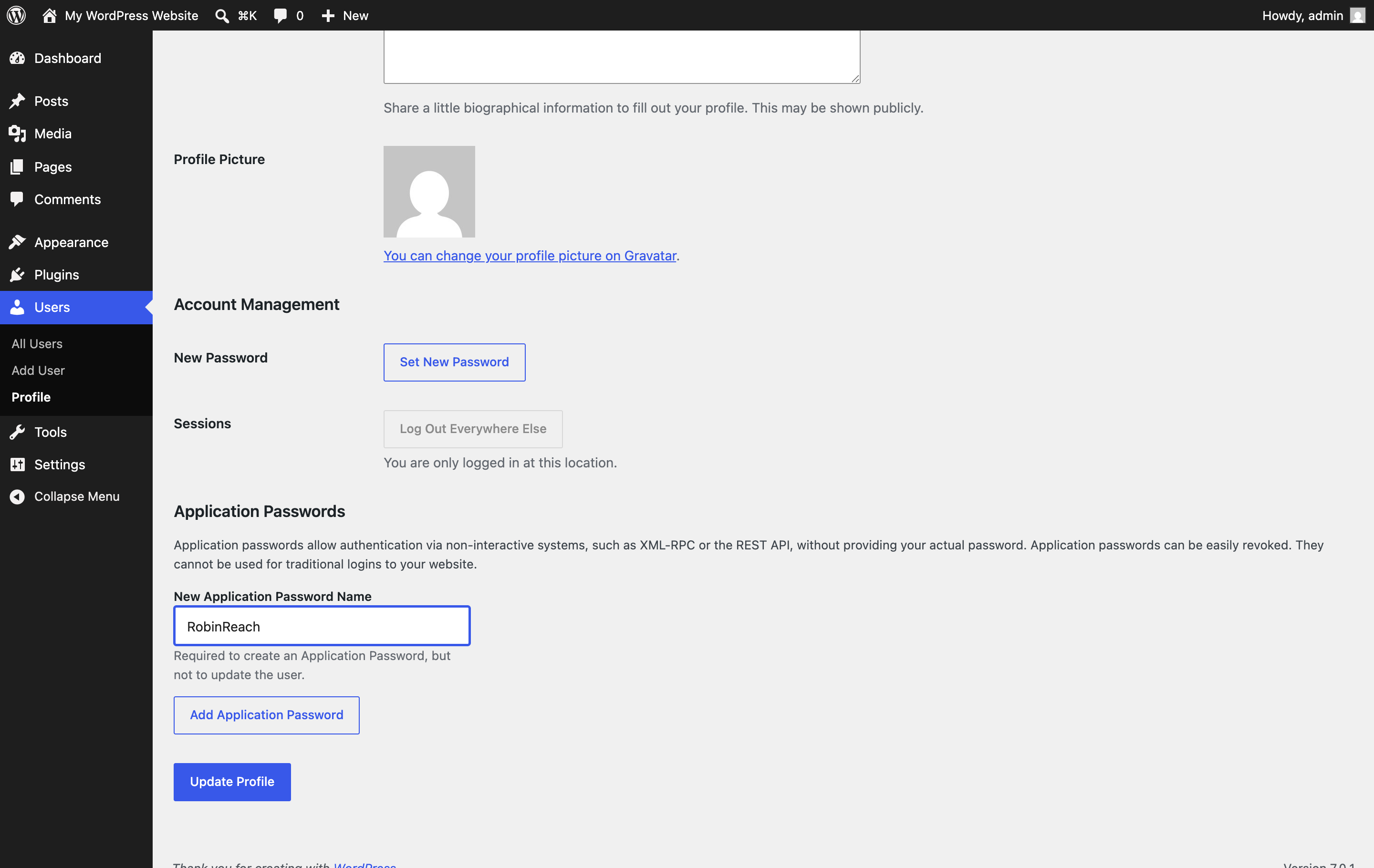
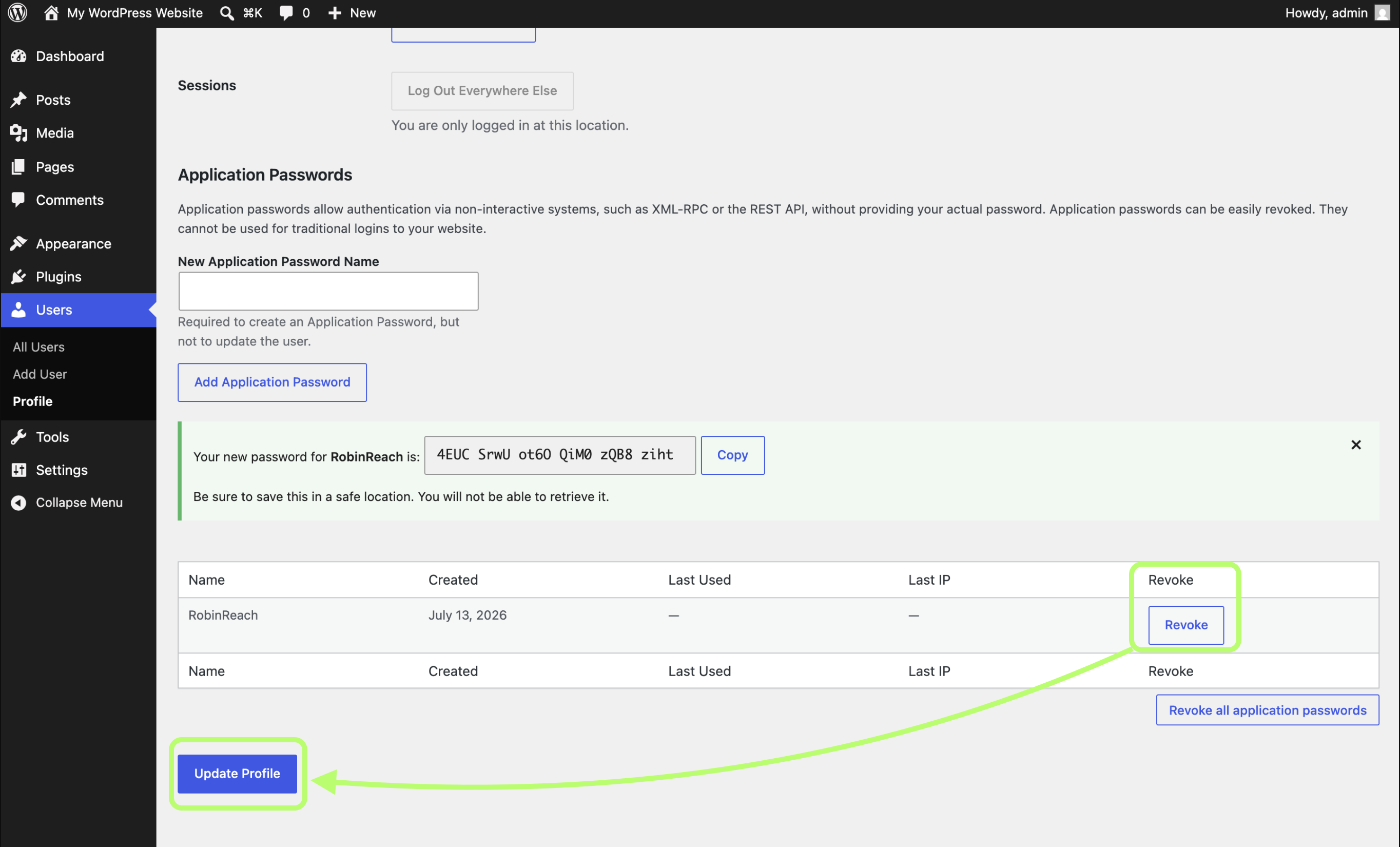
Scroll down the Profile page until you reach the Application Passwords section.
- In New Application Password Name, type a name you will recognize later, for example RobinReach.
- Click Add Application Password. On older WordPress versions the button is labeled Add New Application Password.
WordPress now shows your new password, a 24-character code in groups of four, for example 4EUC SrwU ot6O QiM0 zQB8 ziht .
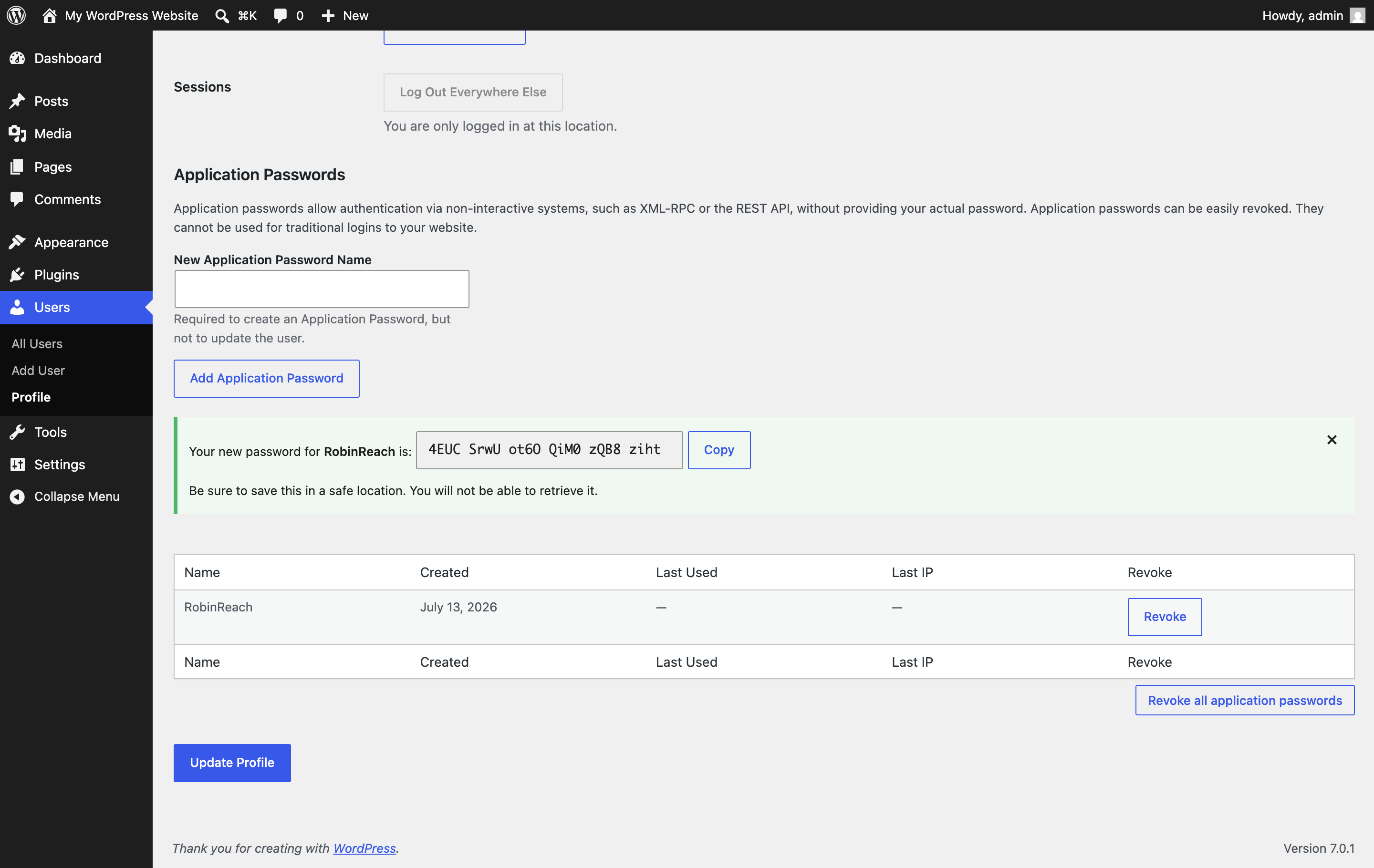
Important: copy the password now, using the Copy button. WordPress shows it only once. If you lose it, simply revoke it and generate a new one. You can paste it with or without the spaces, both work.
Step 3: Connect the site in RobinReach
In RobinReach, go to Connect Channels, find the WordPress card, and click Connect Wordpress.
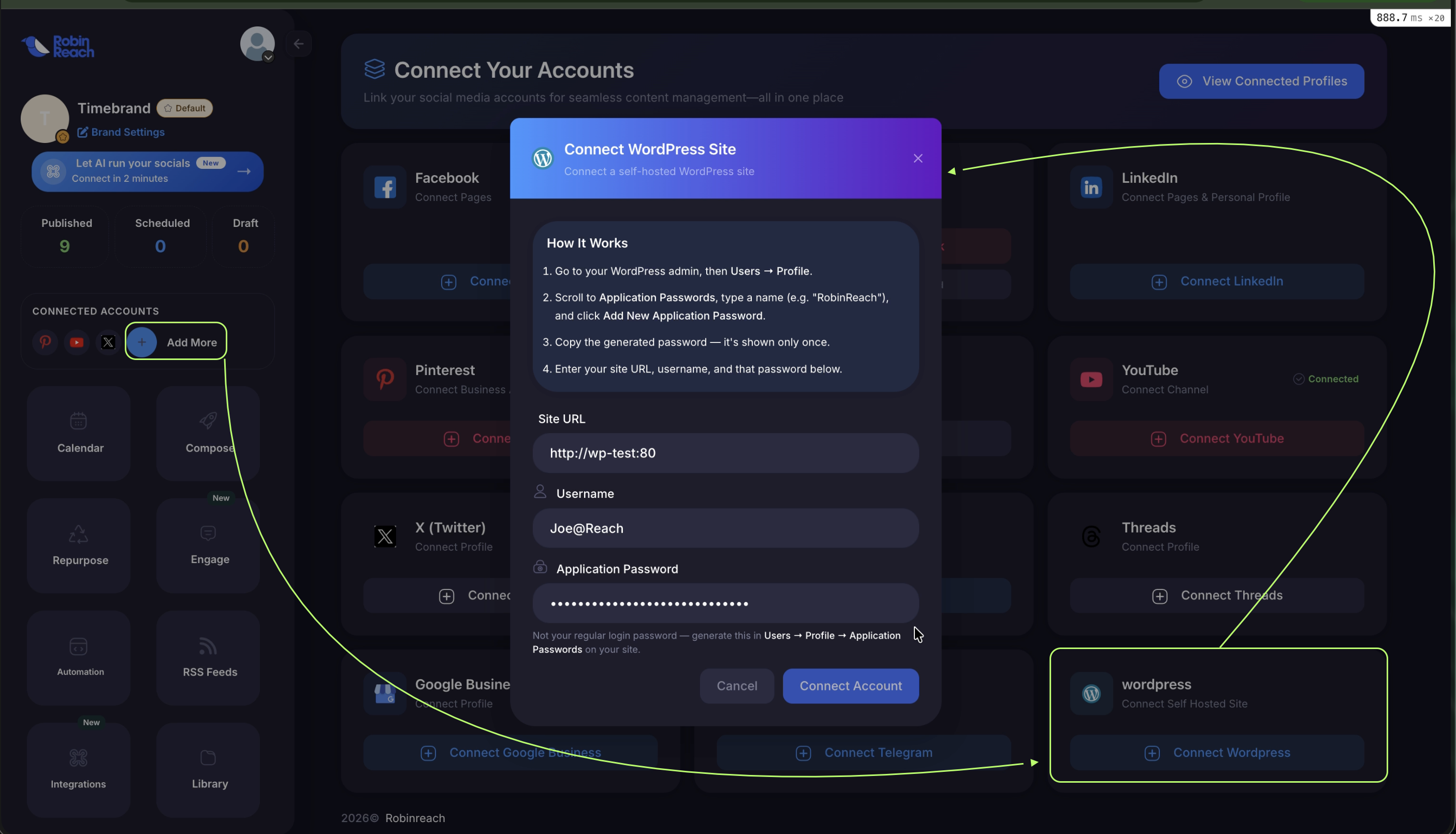
Fill in the three fields in the connect window:
- Site URL: your site address including
https://, for examplehttps://yourblog.com. Do not add any other path. - Username: the WordPress username you used in Step 1.
- Application Password: paste the password you copied in Step 2.
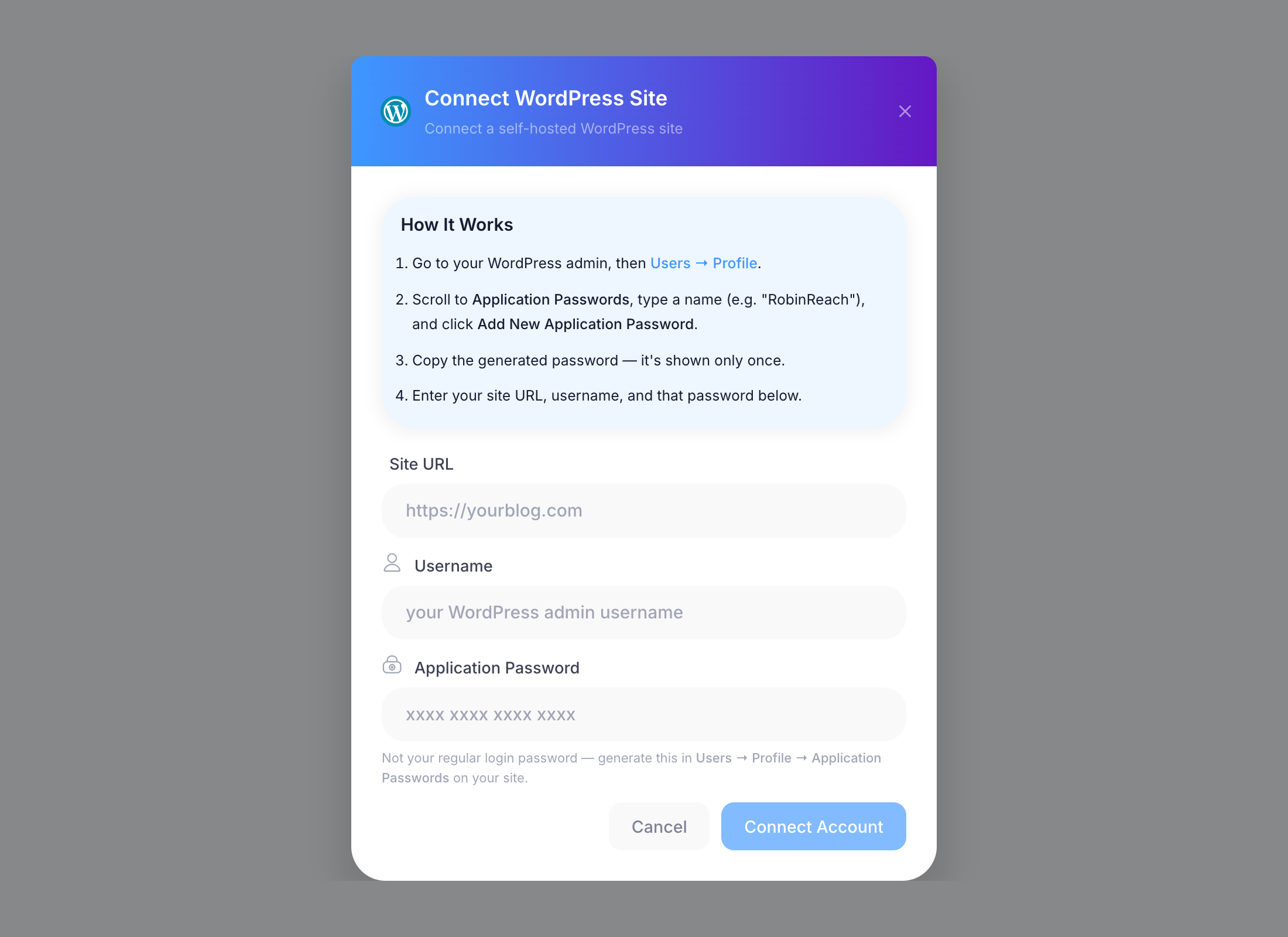
Click Connect Account. RobinReach checks the details against your site right away. Once verified, your WordPress site appears in your channel list and is ready to use.
What you can do once connected
- Publish blog posts to WordPress straight from the RobinReach composer, immediately or on a schedule.
- Add categories and tags to your posts. You can pick existing tags or create new ones while composing.
- Attach an image and RobinReach uploads it to your Media Library and sets it as the featured image.
- Add a follow-up comment that is posted on the article after it goes live.
Updating or revoking access
To stop RobinReach from posting to your site, go to Users → Profile → Application Passwords in WordPress and click Revoke next to the RobinReach entry. This only removes RobinReach's access. Your site, your account, and your other passwords are not affected.
If you revoked the password or want to rotate it, generate a fresh application password in WordPress and reconnect the channel in RobinReach with the new password.
Troubleshooting
"Could not connect to site"
- Double-check the Site URL. It must be the exact address your site loads on, including
https://and anywww.prefix your site uses. - Make sure the site is online and reachable from the internet. Sites on a local machine or behind a login wall cannot be reached.
Wrong username or password errors
- Make sure you pasted the application password, not your normal WordPress login password.
- Check that the username matches the account where you generated the application password.
- Application passwords are shown only once. If you are not sure you copied it correctly, revoke it and generate a new one.
I do not see the Application Passwords section
- Your site must run WordPress 5.6 or newer. Update WordPress if needed.
- Your site must load over HTTPS. WordPress hides application passwords on plain HTTP sites.
- Some security plugins (for example Wordfence or iThemes Security) can turn application passwords off. Check the plugin's settings and enable application passwords, or ask your hosting provider.
The connection fails even though my details are correct
- A security plugin or firewall may be blocking the WordPress REST API. Allow requests to
yoursite.com/wp-jsonand try again. - Go to Settings → Permalinks in WordPress and make sure a pretty permalink structure (anything other than Plain) is selected, then save. On some servers the REST API is unreachable with plain permalinks.
"This WordPress site is already connected to this brand"
Each site can be connected once per brand. If you want to move the connection to a new WordPress user or password, disconnect the existing WordPress channel first, then connect again.
Frequently asked questions
Is this safe?
Yes. An application password only allows API access for the account it belongs to. It cannot be used to log in to your WordPress admin in a browser, and you can revoke it at any moment without touching your real password.
Does this work with WordPress.com?
The integration is built for self-hosted WordPress sites. WordPress.com sites only expose the required API on plans that include plugin and wp-admin access, so on lower WordPress.com plans the connection will not work.
Can I connect more than one WordPress site?
Yes. Repeat the same steps for each site. Every site appears as its own channel, so you can choose exactly where each post goes.